
How to start publishing books
1. Sign up
Click the user icon in the top-right corner of the screen and create an account using email and password, or sign in with Google or Facebook.

2. Create an author profile
After registering, create a new Identity — a user card through which you will work on the platform.
By default, a reader profile is created. To publish books, click New identity, enter a name, and choose the author type.
You can use your real name or a pen name. If you wish, you can also add a profile picture and a short author bio.
Tip: If you write books in different genres under different names, you can create multiple author profiles. The maximum number of cards is five.
3. Create a book
Go to My books and click Create book.
Fill in the basic information about the book:
Title and description
Enter the book title and add a description.
Tip: Try not to exceed 150 words. Short, punchy descriptions are easier for readers to scan and more often motivate them to open the book preview.
Cover
Upload the book cover.
Use only images for which you have the necessary rights or permission to use.
Why is the cover important?
The cover, title, and blurb are the three main elements that help readers decide whether to open a book page. In many cases, the cover is the first thing a potential reader notices.
A good cover should not only catch attention but also hint at the book's content, atmosphere, and genre. If a reader enjoys a particular genre, they should be able to recognize it from the cover before reading the blurb.
Tip: Before creating a cover, look at popular books in your genre. Notice the color palettes, composition, fonts, and motifs. This will help you understand reader expectations and create a cover that is easily recognizable to your target audience.
An e-book cover differs from a print book cover.
On the web, readers most often see covers in small preview thumbnails. Images with lots of fine detail can therefore be harder to read. This is especially true for fiction, where bold accents, characters, and clear composition often draw the reader's attention.
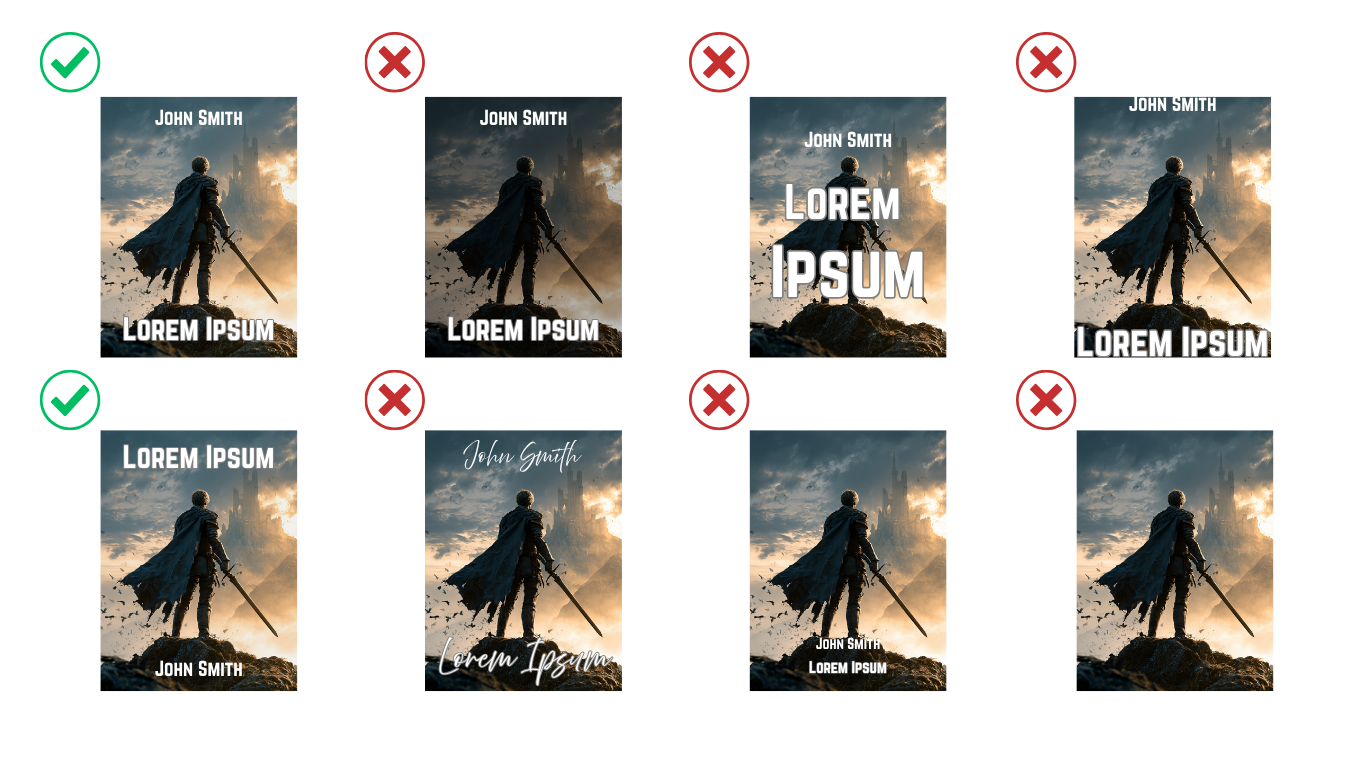
For a cover to look good in the catalog:
- avoid images that are too dark;
- use a large, easily readable title;
- if possible, include the author's name on the cover;
- do not place text too close to the top or bottom edge;
- do not cover important parts of the image with text;
- check how the cover looks in a reduced preview.
Remember: the cover's job is not to tell the whole story but to engage the reader and make them want to learn more.
Example
Imagine author John Smith wrote the novel Lorem Ipsum and prepared several cover variants. Below we show which solutions help catch the reader's attention and which may make the cover less striking or clear.
Series
If the book is part of a series, enter its name in the "Series" field. This lets you link books belonging to the same series on the platform.
If you are not yet sure whether the book will be part of a series, leave the field empty. You can return to the book settings later and add the series name at any time.
Restrictions
The age category is advisory and not required. We still recommend providing it for every book.
Age restrictions help readers choose works that match their interests and expectations. The more complete the information about a book, the easier it is for a potential reader to tell whether your work is right for them.
Choose a recommended age category:
- No restriction — for readers of all ages;
- 3+ — literature for preschool and young children;
- 7+ — children's literature;
- 12+ — literature for teenagers;
- 16+ — Young Adult;
- 18+ — works for adults.
For books marked 18+, it is especially important to fill in the Content warnings section and list themes and elements that appear in the work. For many readers, this information is an important criterion when choosing a book and helps them form the right expectations before they start reading.
Tip: Do not treat age restrictions and content warnings as mere formalities. They are additional tools that help your book reach exactly the readers it is intended for.
Important: The author is responsible for the content of published works. Books published on the platform must not violate applicable laws. If materials are found to be in conflict with legal requirements, the platform administration reserves the right to restrict access to the work or remove it from the platform.
Author
Select the author profile under which the book will be published.
Additional information
If needed, provide:
- publisher;
- year of publication or completion of the book.
Genres and tags
You can select up to three genres for a book.
Tip: The more accurately you fill in genres and tags, the easier it is for readers to find your book.
Tags help specify the work's theme, subgenres, plot specifics, and setting.
To add a tag, start typing its name and select a suitable option from the list.
4. Add content
After saving the book card, you can start publishing chapters.
To publish a book, you must add at least one chapter of at least 1,000 words.
The book will then be available to readers on the platform.
5. Book status
A new book is marked as a work in progress by default. This status suits works you plan to write and publish gradually, adding new chapters as you go.
If the book is already finished and you want to publish it as a complete work, click "Mark as finished".
Tip: If you plan to keep working on the book and add new chapters, leave it as a work in progress. If the work is fully complete, mark it as finished — readers will then have a clearer idea of what to expect.
Downloading the book
When publishing, you can allow readers to download the book in FB2 format.
If you check the corresponding box, readers will be able to download the book and read it off the platform. If you leave it unchecked, the book will only be available to read on Löwenbooks.
Tip: If you want to limit downloads and prefer readers to read the book directly on the platform, leave the box unchecked.
6. Book price
For paid books, the platform sets an allowable price range. This helps prevent prices that are too low or unreasonably high.
When choosing a price, we recommend basing it on the average price of books in a similar genre on the platform. A price that deviates too much from what readers are used to — whether higher or lower — can affect their purchase decision.
Tip: Before setting a price, see what other books in your genre cost. This will help you choose a price that feels natural and understandable to your target audience.